
GitOn: An AI development environment running within a Git workflow
An AI DevOps environment that integrates code management, CI/CD, and collaboration within a Git workflow, and executes directly within the development flow.
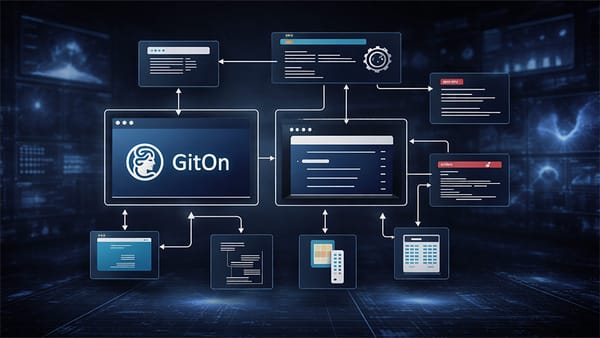
- An AI DevOps environment that integrates code management, CI/CD, and collaboration within a Git workflow, and executes directly within the development flow.
- Scalable AI infrastructure capable of flexibly connecting OpenAI-compatible APIs and local models through LLM integration
- Configuration of core features that reduce repetitive tasks and increase productivity through natural language search, code navigation, and automatic PR generation.
- A virtual user structure based on AI users that participates in overall DevOps and assists in collaboration
- Interactive AI that supports the entire development flow, from understanding the codebase and answering questions to reviewing pull requests.
- AI application extending to CI/CD configuration modification and build failure cause analysis, enabling utilization even in the production phase.
- Implementing a more intelligent development environment by supporting scalability through the MCP server and integration with various tools
Artificial intelligence and technologies based on it have now become an essential part of our lives. Some people use them in the workplace, while others utilize them in various fields such as entertainment and education. As with all other tools, we expect AI to help us handle routine and repetitive tasks more easily and efficiently.
As an engineer, I believe it is important to apply AI to work-related areas. This is not limited to just IDEs but also includes auxiliary products such as version control systems and productivity tools.
In this blog post, I intend to introduce the features of GitOn, one such product, in detail.
What is GitOn?
GitOn is a Git server with a wide range of built-in features. It is a tool that allows you to easily track code changes and work, create reusable CI/CD pipelines, and provides various functions such as user permission management for branch protection.
Since various new AI-based features have been introduced through a recent update, this articlewill focus on GitOn's AI capabilities . Let's take a look at the key features and how they work.
Basic AI features
In GitOn, server administrators can enable LLM for basic functionality. Setup is completed simply by adding an OpenAI-compatible endpoint in the AI settings menu.
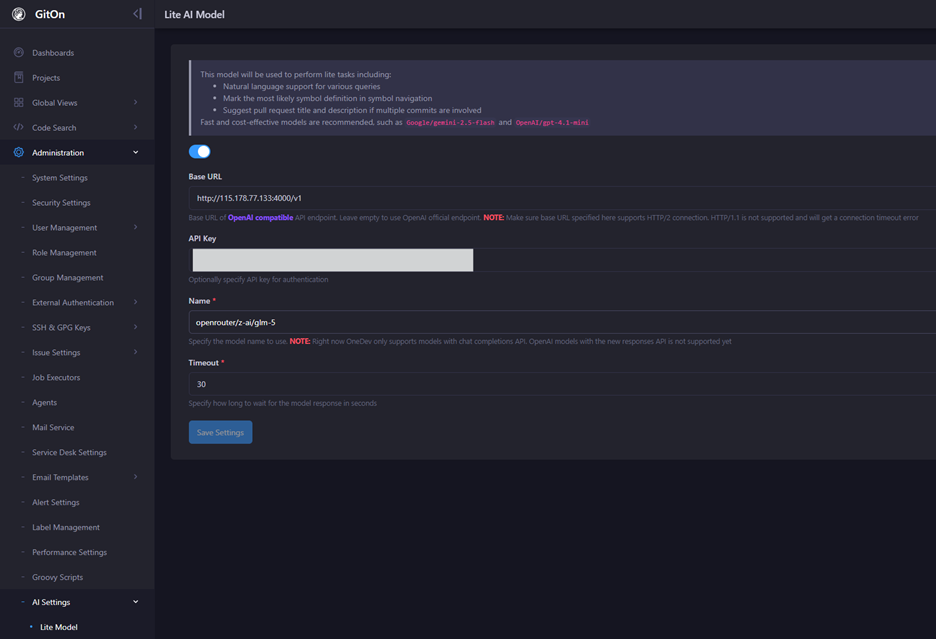
You can use public models (e.g., ChatGPT, Gemini, Claude) or connect to your own local models. These models handle basic functions, such as converting natural language into search queries, explaining and navigating code symbols, and providing tooltips for Pull Request titles and descriptions.
Now, let's take a closer look at each feature.
1. Natural Language Query
GitOn performs searching and filtering by default using built-in queries. However, it does not always know which parameters and values are being used in a specific project.
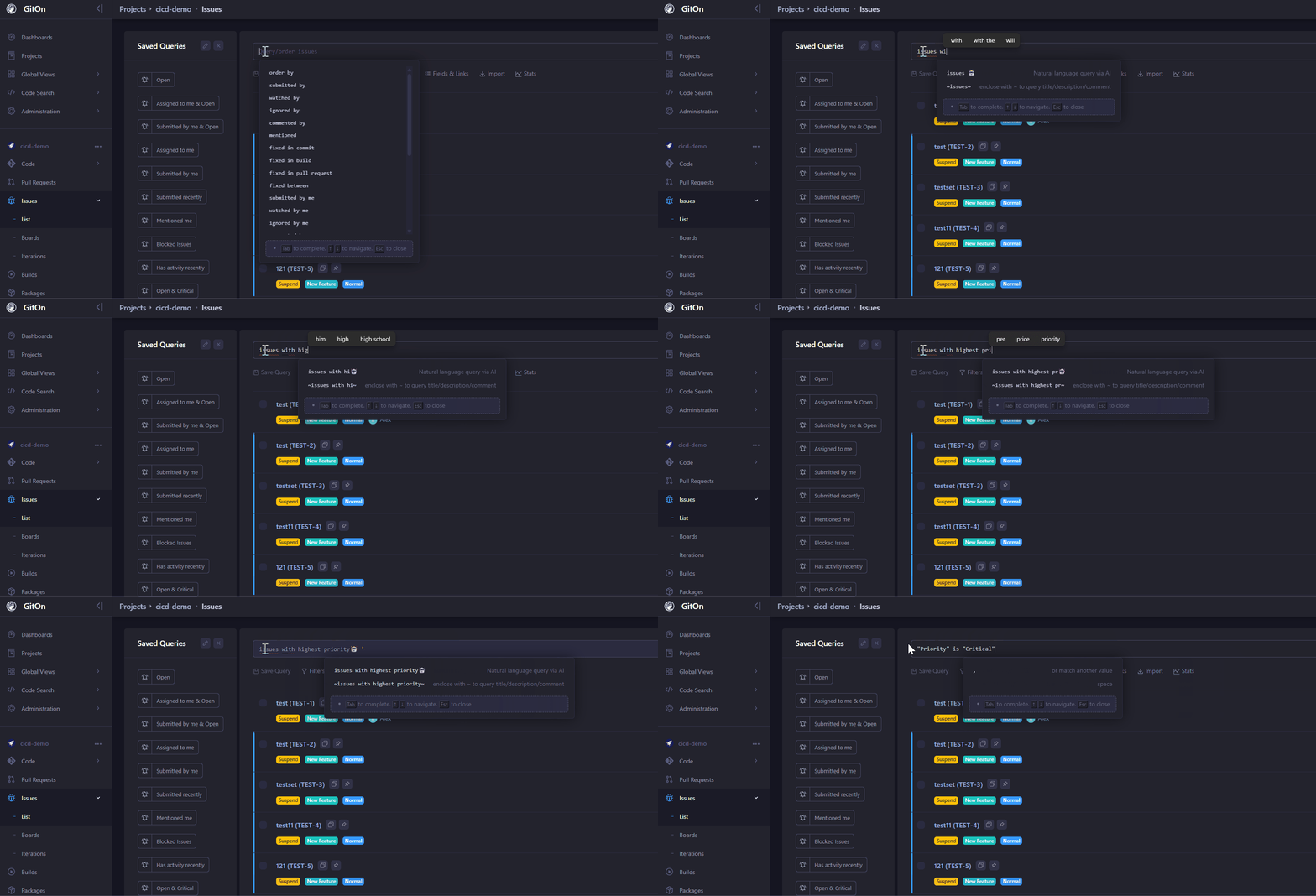
You can perform searches in the form of ordinary sentences using the natural language query feature. After describing what you want, press the Tab key, and GitOn passes the request to the AI to convert it into a structured query.
The example below shows the process of converting a search sentence into an actual query.
2. Symbol Navigation
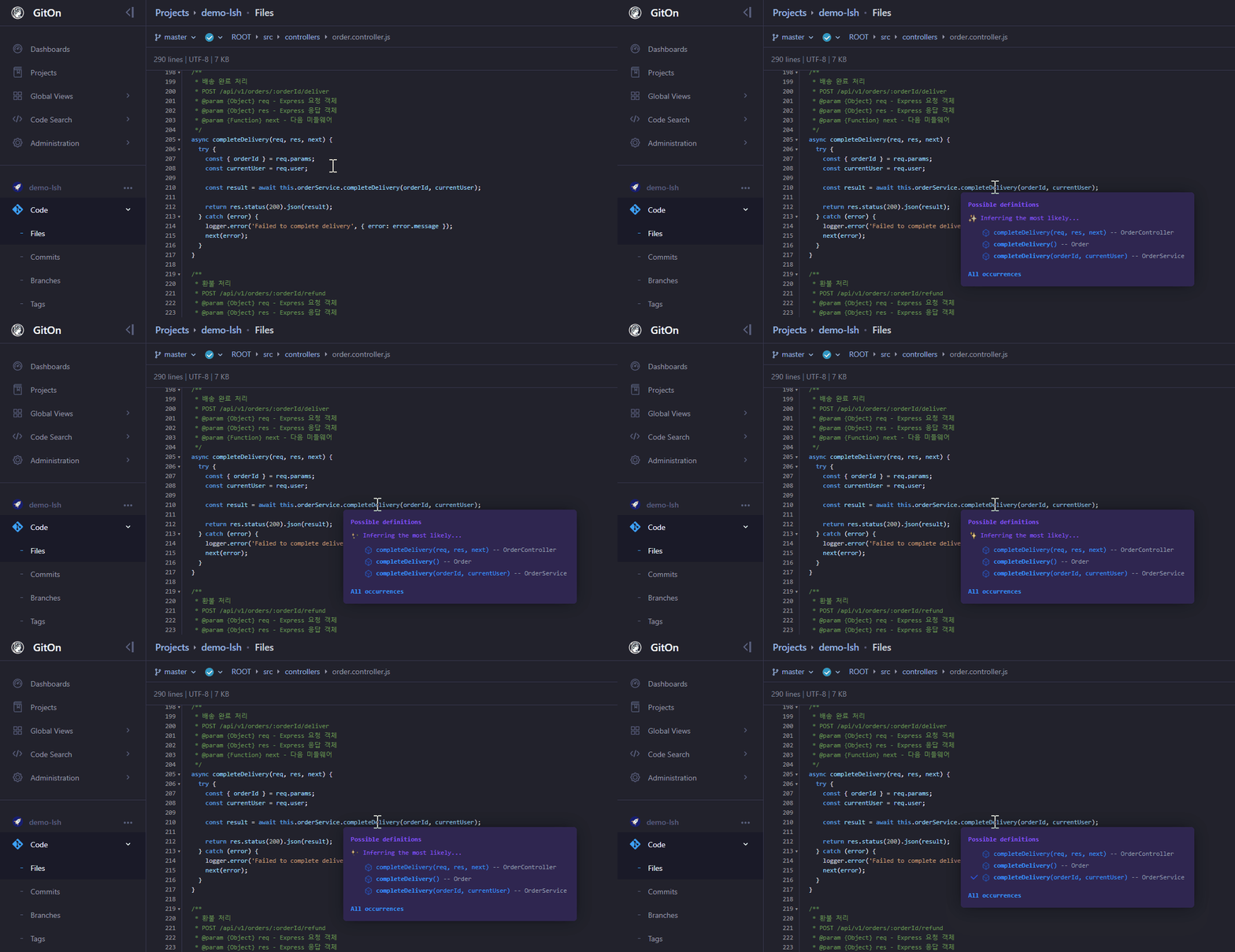
A single symbol in code can have multiple meanings. Because AI analyzes the context of a symbol to help select the most likely meaning, navigating code in source or diff views becomes much easier.
The example below demonstrates that users can go directly to the exact location of the code without having to search for it themselves.
3. Pull Request Title and Description Recommended
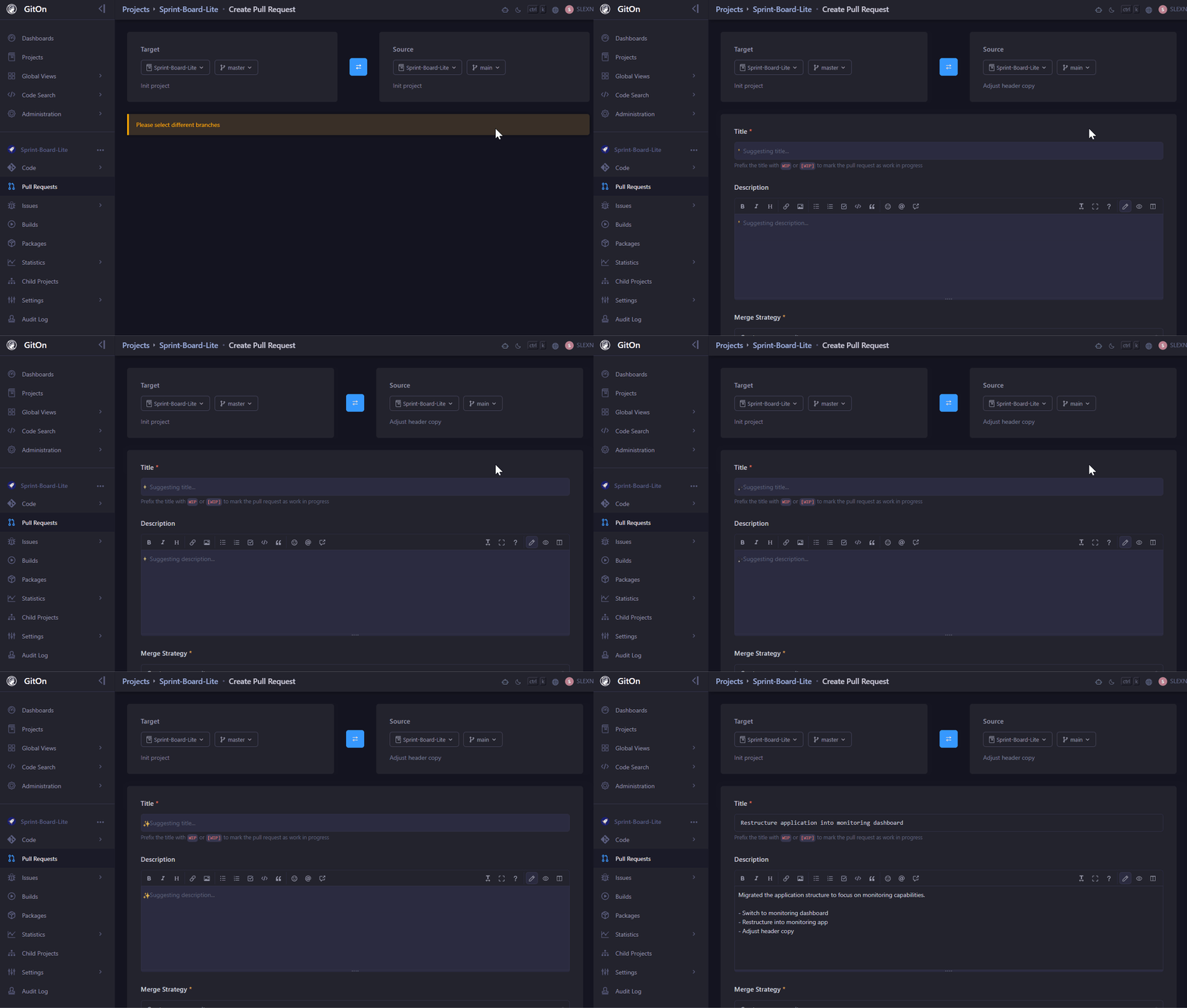
When creating a Pull Request by merging multiple commits, GitOn can use AI to automatically generate a title and description based on commit messages and file changes.
4. AI User
An AI User is a virtual user that assists users in the DevOps and development process. It can be assigned globally to the entire project and users, or restricted to specific projects.
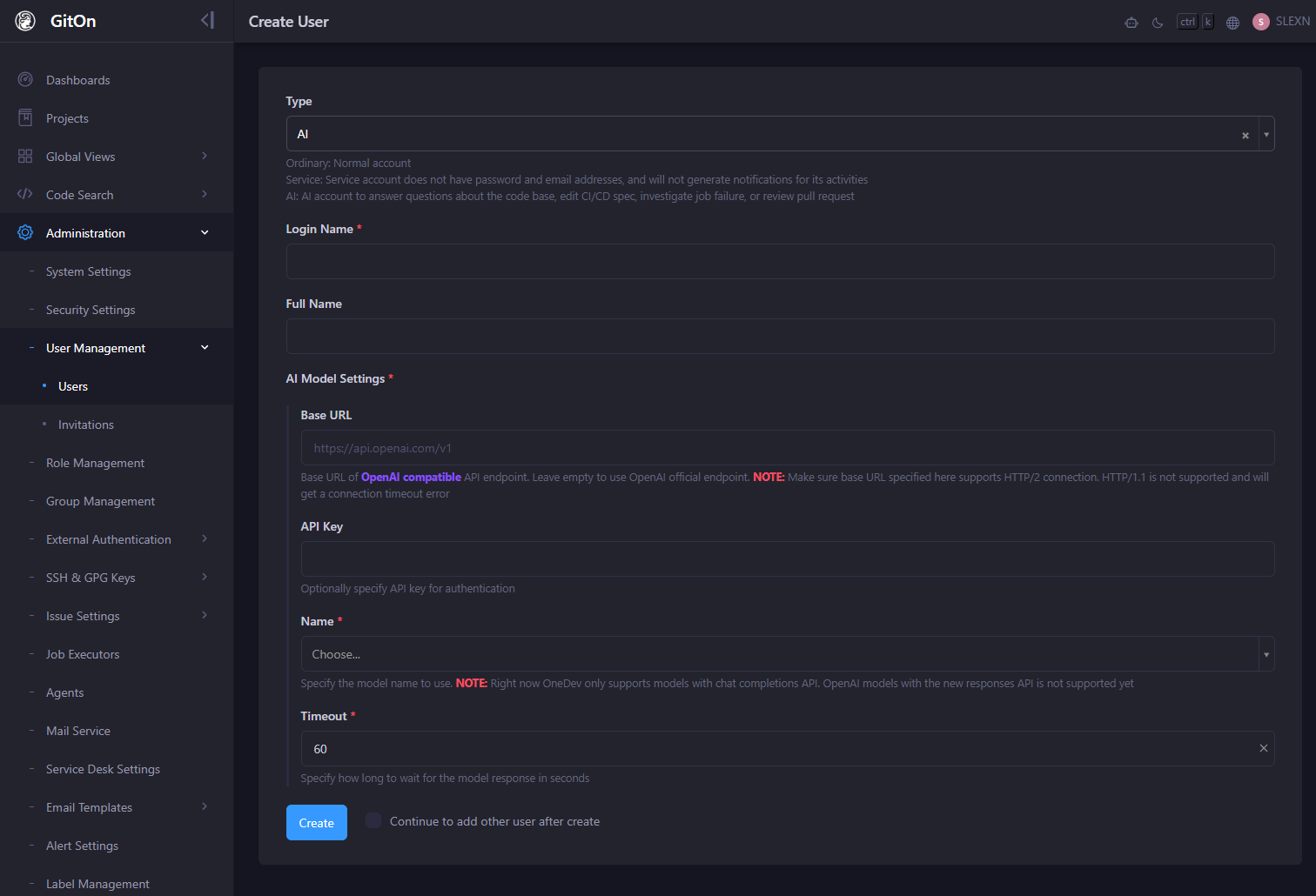
The setup process is also simple. You just need to create a new user and specify the AI type. Afterwards, you can proceed with model connection settings, which also uses an OpenAI-compatible API.
You can use a public model, or you can use a model deployed on your own infrastructure.
After setting up the basic AI user, you can also configure which actual users can use the AI and which groups and projects it can interact with.
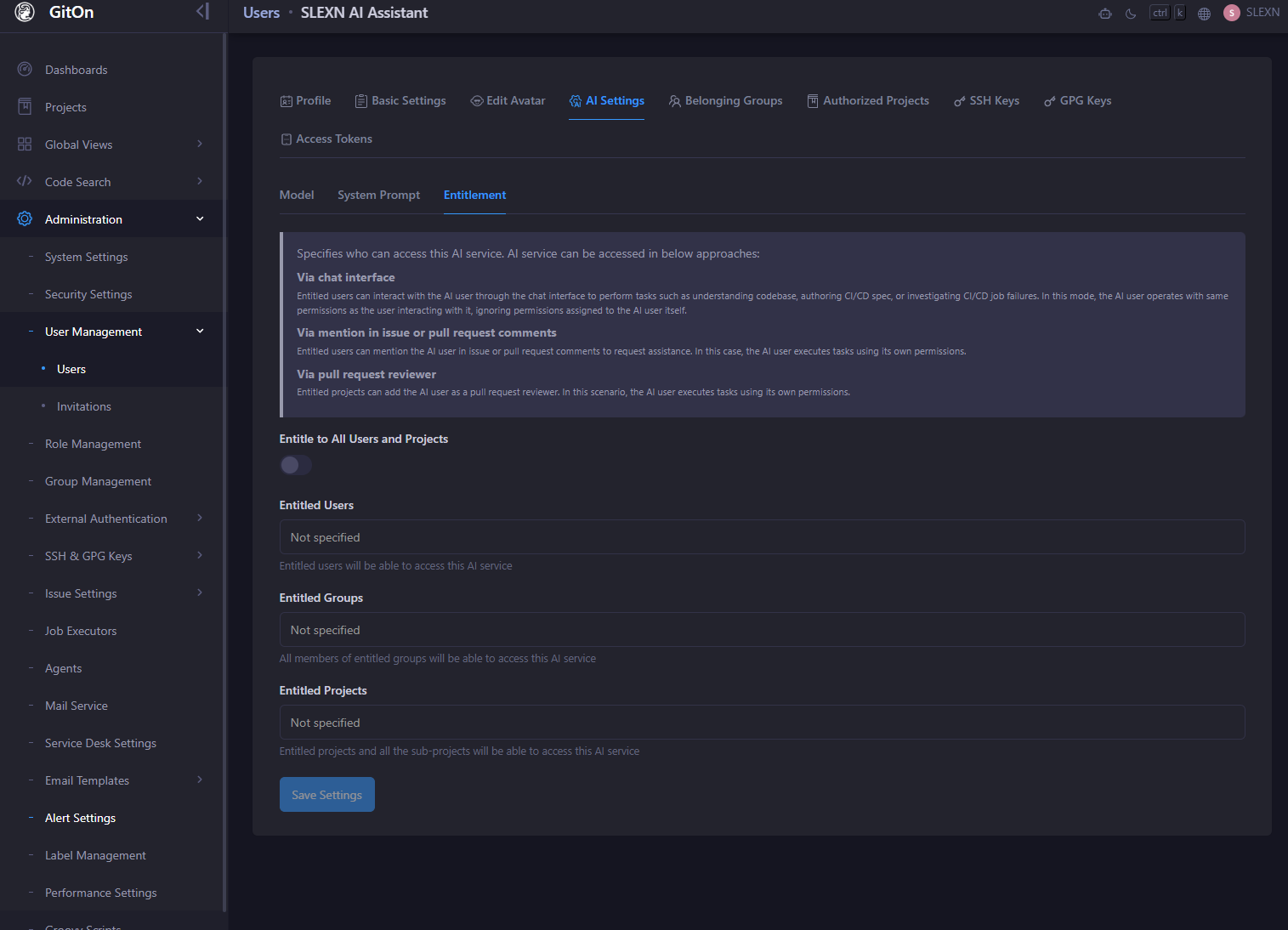
Additionally, you can set a separate model for each AI user and specify appropriate system prompts. For example, you can set strict prompts for an AI acting as a reviewer to produce more concise and clear results, while applying more natural, conversational prompts to an AI using a chat interface.
Written by

![[WEBINAR] Git-based Development Collaboration Structure Implemented with Multi-LLMs and AI Agents](/content/images/size/w600/2026/10/Futuristic-DevOps-Glassmorphism-Dashboard.png)